
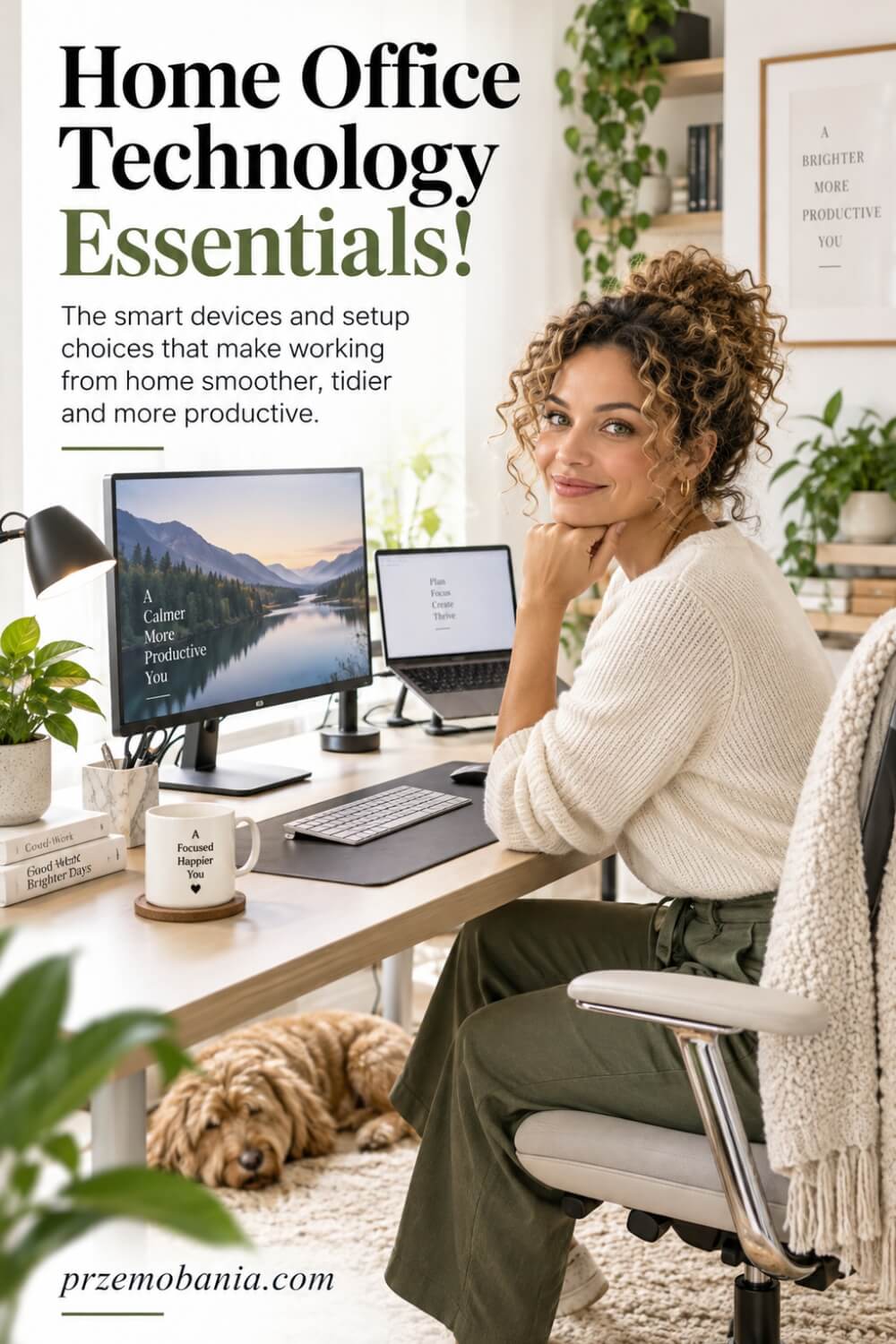
Home Office Technology
Could the right technology make your home office feel calmer, faster, and far easier to work in, instead of turning your desk into a tangle of expensive gadgets you barely use? Home office technology should quietly remove friction from your working day by helping you see, connect, communicate, create and protect your work more comfortably.
If you have ever bought another cable, adapter, monitor or clever little device hoping it would finally fix your workspace, only to feel more confused afterwards, I know exactly why you are here.
Home office technology is the connected mix of computers, displays, input devices, internet and networking, audio-video tools, power, software, security and ergonomic accessories that lets you work from home reliably, comfortably and productively without filling your desk with pointless gadgets.
I am a passionate blogger whose life changed when my wife became chronically ill, and alongside the love of interiors my mum quietly planted in me during childhood, I have spent years helping my wife shape a workspace that makes working from home kinder to her body while building my own cosy home office where I write, create and earn my living online, so alongside everything I have learnt through our own trial and error and my lifelong love of home décor, I have included the sources I used at the bottom of this article because I want to keep learning rather than pretend I already know everything.
What surprised me while digging deeper into this subject is how quickly technology, comfort, and the physical design of a room begin to overlap. In one published assessment of 41 home workstations, 30 laptop screens were positioned too low and 30 setups had no lumbar support, which is a useful reminder that improving a computer setup sometimes starts with raising a screen and separating the keyboard and mouse rather than buying a faster machine.
There is also a much bigger reason to take these choices seriously now!
Office for National Statistics data showed that 28% of working adults in Great Britain were hybrid working between January and March 2025, so the home workspace is no longer a temporary corner for millions of people. The technology sitting around you affects far more than speed; it influences video calls, posture, visual comfort, internet reliability, concentration, security, and how much unnecessary irritation follows you through an ordinary working day.
Before getting into individual monitors, docks, webcams, networking and the equipment that is genuinely worth your money, my wider guide to building a home office that works will help you see how technology fits together with layout, comfort, lighting and the rest of your workspace rather than treating every purchase as a separate decision.
- What Home Office Technology Do You Actually Need?
- Start With Your Real Workflow
- Build Around a Reliable Computer
- Choose a Comfortable External Display
- Raise Screens to Eye Level
- Separate Your Keyboard and Mouse
- Strengthen Your Internet Connection First
- Simplify Connections With a Dock
- Improve Calls Before Buying Extras
- Protect Your Work and Accounts
- Manage Power, Lighting and Cables
- How Home Office Technology Can Reduce Daily Friction?
- How to Choose Home Office Technology That Will Last?
- How Home Office Technology Can Adapt to the Way You Work?
- How Home Office Technology Can Protect Your Focus?
- Final Word on Home Office Technology
What Home Office Technology Do You Actually Need?
For me, the best place to start is not with a shopping basket full of clever gadgets but with the work you actually do between the moment you sit down and the moment you close the laptop. Your setup should remove the small interruptions that keep stealing your attention, whether that means waiting for files to open, fighting with cables, leaning towards a tiny screen or reconnecting devices every morning.
Your computer has to be capable enough for your real workload, but spending more on processing power you will never use makes little sense if the screen, keyboard or connection frustrates you for eight hours a day. After that, I would look at the display because a larger external monitor can give you more usable workspace for writing, research, spreadsheets, editing, communication and keeping reference material visible without constantly jumping between windows.
The physical position of that screen matters just as much as its specification. UK Health and Safety Executive guidance advises placing the top of the screen around eye level, roughly an arm’s length away, while prolonged laptop users should consider raising the laptop and using a separate keyboard and mouse so the display and hands can be positioned independently.
That is why I see home office technology as a chain rather than a collection of individual products. A beautiful high-resolution monitor is far less useful when its stand leaves you craning your neck, just as an expensive laptop feels surprisingly ordinary when unreliable Wi-Fi keeps freezing a meeting.
Your internet connection deserves attention before you start buying glamorous desk accessories because cloud storage, video conferencing, website management and online collaboration all depend on it. I would first look at router position, Wi-Fi coverage and whether the connection remains stable where you actually sit, rather than judging your network only by the maximum speed printed on your broadband package.
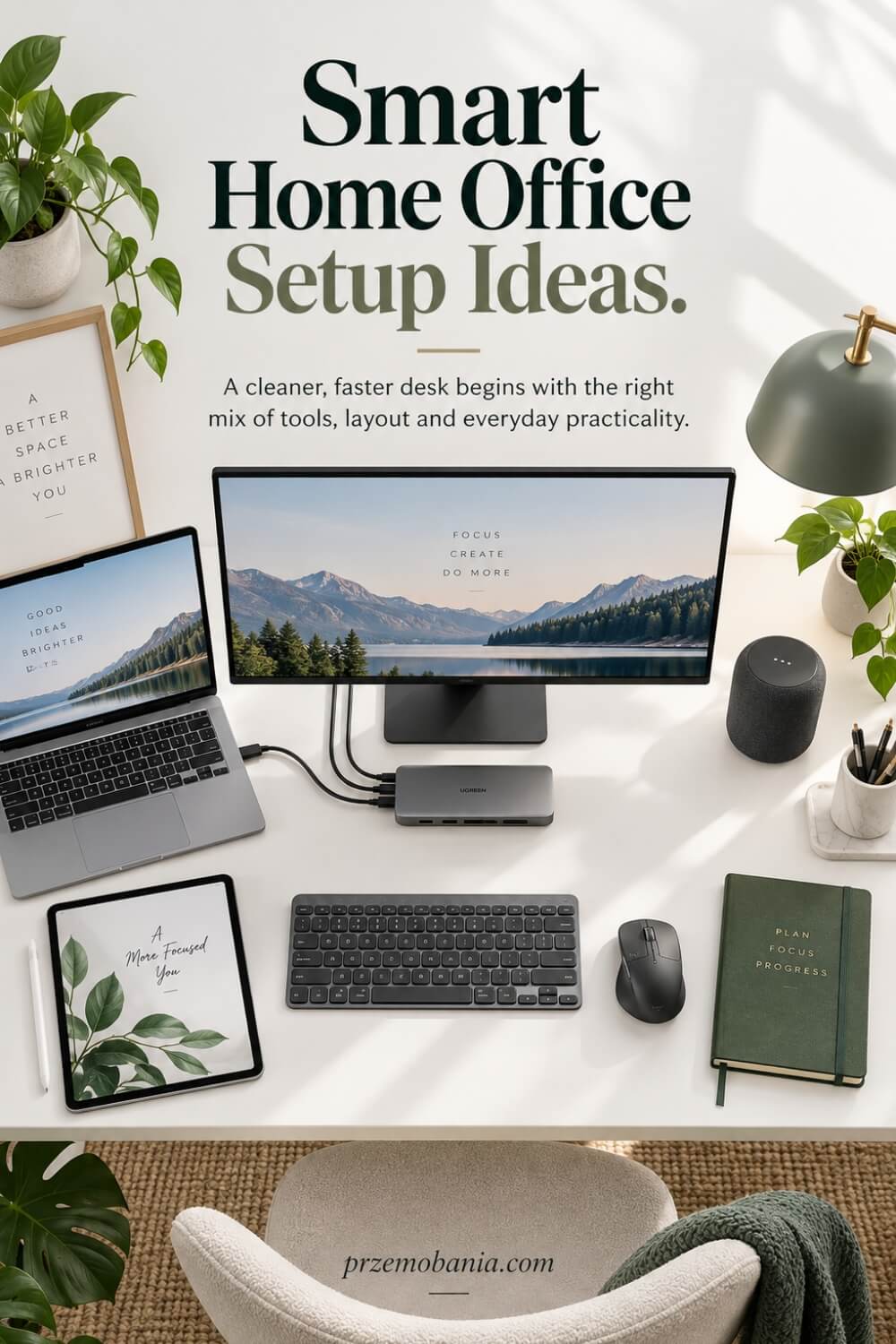
A USB-C or Thunderbolt dock can then make a laptop-based workspace much cleaner by letting compatible computers connect to displays, storage, networking and other peripherals through fewer cables. The important word is compatible, because the ports on two laptops can look almost identical while supporting very different combinations of charging, video output and data transfer.
For video calls, I would improve sound, camera position and lighting as a system rather than assuming the most expensive webcam will rescue a badly lit room. Even excellent cameras struggle when a bright window sits behind you, while thoughtful front lighting and a camera positioned near eye level can make a modest setup look far more professional.
Security also belongs on the desk even though you cannot decorate a room with it, particularly when your income, client information, passwords, drafts and personal files live on the same machines you use every day. The National Cyber Security Centre recommends keeping software updated promptly, using multi-factor authentication where available and maintaining backups, with its current small-business guidance suggesting that particularly important data can be protected through both online and separate storage backups.
Once those foundations work properly, smart lighting, wireless charging, speakers, automation and other upgrades can make the room nicer to use, but I would always ask whether each addition solves a genuine problem before giving it precious space on your desk.
I learnt that lesson more deeply while helping my wife work from home, because there are days when something as small as reaching repeatedly for the wrong mouse position or struggling with another cable is not a tiny inconvenience at all. When your body is already asking you to ration energy, a workspace that quietly cooperates with you can feel like somebody has finally stopped adding another obstacle to the day.
That changed the way I build my own office too, because I no longer want technology that impresses me for ten minutes after opening the box. I want the things around us to earn their place every single day, and these are the choices I would work through first:
- Start With Your Real Workflow
- Build Around a Reliable Computer
- Choose a Comfortable External Display
- Raise Screens to Eye Level
- Separate Your Keyboard and Mouse
- Strengthen Your Internet Connection First
- Simplify Connections With a Dock
- Improve Calls Before Buying Extras
- Protect Your Work and Accounts
- Manage Power, Lighting and Cables

Start With Your Real Workflow
Before I buy anything for a workspace, I watch the day rather than the adverts. I write down what I open first, which tasks make the laptop slow down, where I keep reaching for something, and what interrupts me often enough to become annoying. That little exercise tells me far more than a list of fashionable gadgets ever could.
If you spend most of your time writing, managing a website and researching, you may value screen space, a comfortable keyboard, dependable storage and quick access to several browser windows. Someone editing large video files may need stronger processing, faster external storage and a more capable display connection. I also look at what happens on difficult days, because a setup should still feel usable when concentration or energy is low. Build around repeated tasks first, then add equipment only when you can name the problem it solves. That is how a workspace becomes personal instead of simply expensive.
Build Around a Reliable Computer
Your computer is the engine of the room, but I would choose it by workload rather than by the badge on the lid. I want enough memory, storage and processing power to keep everyday work moving smoothly, with some headroom for the next few years, because replacing an underpowered machine too soon rarely feels like a saving.
Think about the software you depend on, how many applications you keep open and whether your work includes large photographs, video, design files or virtual meetings. Port selection matters too if you plan to use external monitors, Ethernet, storage or a docking station. I value reliability over impressive specifications I will never use, because the best computer for a home office disappears into the background while you work. When it stops making you wait, restart or rearrange your day around its limitations, you realise how much mental space those small frustrations were taking.
Choose a Comfortable External Display
A larger screen is one of the upgrades I notice every hour, not because bigger automatically means better, but because useful space changes how comfortably I organise work. I can keep research beside a draft, compare documents without constant switching and give important windows room to breathe instead of stacking everything on top of everything else.
Resolution, panel size and text scaling should work together, so do not chase a specification simply because it sounds more advanced. I prefer crisp text at the distance where I naturally sit, brightness that can be adjusted comfortably, and a stand or monitor arm that lets the display move to me rather than forcing my body towards it. If reflections are troublesome, a matte screen can also help. Before buying a very large display, think about desk depth and viewing distance. A monitor should make information easier to see, not make your eyes and neck work harder to take the whole screen in.
Raise Screens to Eye Level
Screen height sounds almost too simple to deserve attention, yet it can change the whole feeling of a workstation. UK Health and Safety Executive guidance places the top of the screen around eye level and the display roughly an arm’s length away, while recommending that the screen and keyboard sit centrally so you are not twisting through the day.
I use that as a starting point rather than treating my desk like a laboratory measurement. Your height, chair, eyesight and work still matter, so adjust until your head feels naturally balanced and you can read without leaning forwards. A monitor stand or arm is ideal, but even a stable riser can solve a height problem without replacing the display. What I would not do is keep a laptop flat on the desk for long sessions simply because it looks tidy. When the screen rises, the keyboard usually needs to separate from it, and that one change can make the whole arrangement calmer and kinder to use.
Separate Your Keyboard and Mouse
Once a laptop is raised, a separate keyboard and mouse stop being decorative extras and become part of making that position usable. They let you keep the screen higher while bringing your hands back down to a comfortable level, which is why I see them as one of the simplest ways to turn a portable computer into a proper desk setup.
I like a keyboard that feels comfortable without forcing my wrists upwards, and a mouse that sits close enough that my arm does not spend the day reaching. The HSE advises keeping the mouse in line with the elbow and the keyboard just below elbow height. That does not mean everybody needs an unusual ergonomic device or an expensive mechanical keyboard. Start with fit, reach and ease of use, then change equipment only if a specific problem remains. Small adjustments matter because you repeat these movements constantly while writing, editing and navigating, so unnecessary reach can become a surprisingly persistent irritation.
Strengthen Your Internet Connection First
A beautiful office can still feel unusable when the connection drops during an upload or turns your face into a frozen square in a meeting. Before blaming the laptop, test the connection where you actually work and look at the physical path between your desk and router, because walls, furniture and nearby equipment can weaken Wi-Fi.
Ofcom advises keeping a router out in the open, off the floor and, where practical, in a more central position, while avoiding obstacles and electrical devices that can interfere with the signal. If your office is fixed and Ethernet is practical, a wired connection can provide greater consistency than Wi-Fi. In larger homes, better router placement, a suitable mesh system or additional access points may solve dead zones more effectively than repeatedly changing broadband plans. I learnt to treat internet reliability like electricity: when it works properly you barely think about it, and that is exactly how essential technology should feel.
Simplify Connections With a Dock
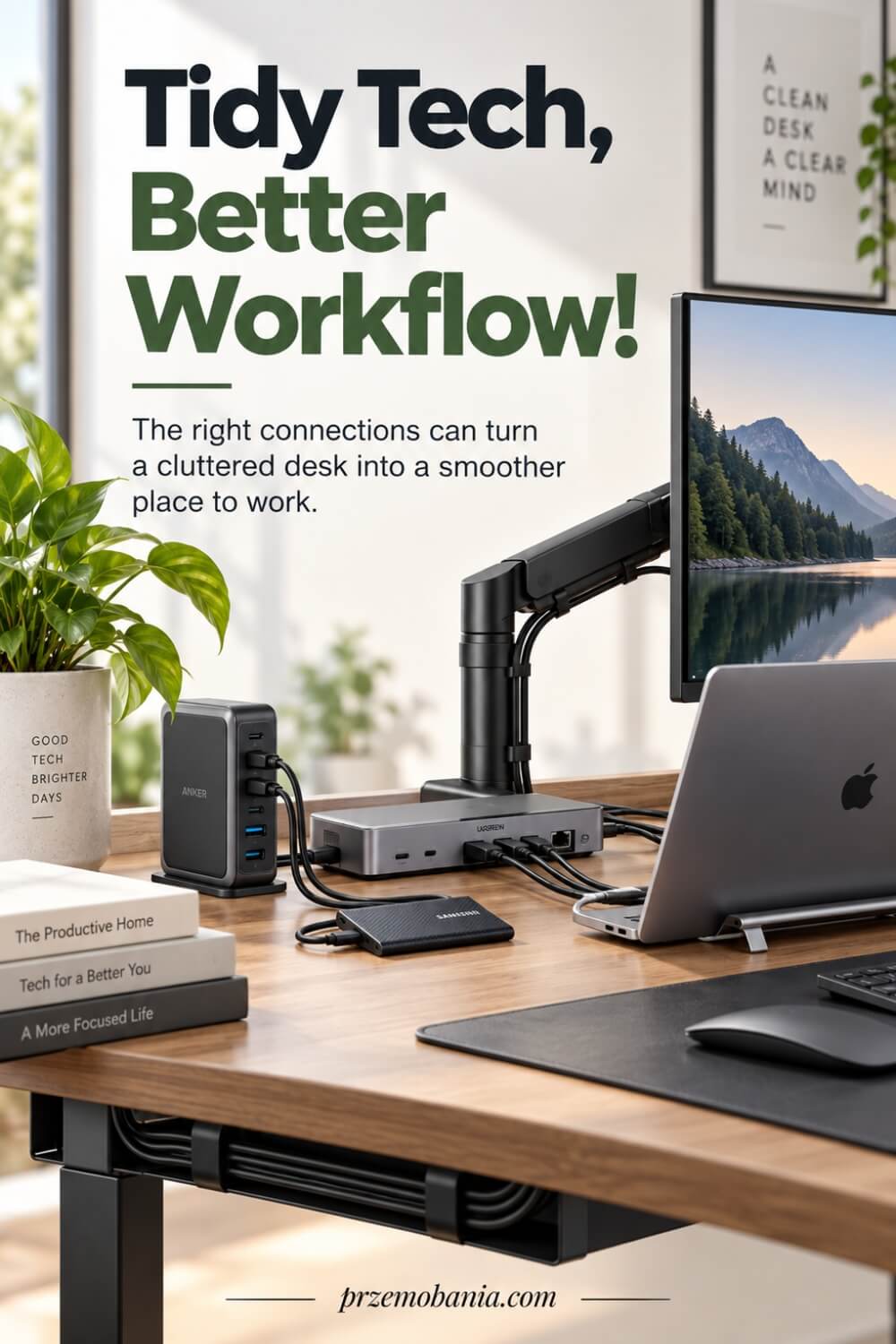
A docking station can turn the moment you sit down into one connection instead of a morning ritual involving chargers, monitor leads, storage and network cables. That convenience matters when you regularly move a laptop away from the desk and want the room to remain visually calm rather than permanently threaded with wires.
The catch is compatibility, and this is where I would slow down before buying. A USB-C shaped port does not automatically guarantee the same charging power, display support or data speed on every computer, so check the laptop specifications and the dock’s supported outputs together. Count the displays you genuinely use, note their resolution and refresh rate, check the power your laptop expects, and leave enough ports for accessories you connect often. I prefer one dock that matches a known setup rather than the one boasting the largest number of sockets. Fewer connections that work every time are far more useful than ports you cannot actually use.
Improve Calls Before Buying Extras
If you spend time on video calls, you can often improve how professional you look and sound without replacing your computer. I start with camera height, light and microphone distance because those three things shape what the other person experiences more directly than a pile of accessories around the monitor.
Place the camera close to eye level so you are not speaking down into a laptop, and face a soft source of light rather than sitting with a bright window directly behind you. Before buying a new microphone, record yourself in the room because hard surfaces, distance and background noise can make decent equipment sound hollow. Headphones can help when echo or shared spaces are a problem, while a dedicated webcam becomes worthwhile if the built-in camera truly limits image quality or positioning. I want calls to feel effortless, not like a studio production. The goal is to be seen clearly, heard comfortably and able to focus on the person rather than on the equipment.
Protect Your Work and Accounts
The part of a home office you cannot photograph for Pinterest may be the part that protects everything you have built. I think about security as ordinary maintenance: keep supported software updated, protect important accounts with two-step verification, use strong unique passwords and make sure valuable files exist somewhere other than the computer in front of you.
The National Cyber Security Centre recommends prompt updates, two-step verification and regular backups, and its current small-organisation guidance suggests considering both online storage and a separate storage device for extra resilience. A backup is only useful if it contains the files you need and you know how to restore them, so test that rather than trusting an icon in the menu bar. This matters when a laptop contains years of writing, client work, photographs or income-producing files. Losing hardware is painful; losing the only copy of your work can feel as though part of your life disappeared with it.
Manage Power, Lighting and Cables
The final layer is not glamorous, but it is what makes technology feel as though it belongs in the room. I plan where power comes from, which devices need charging, where cables travel and how lighting changes through the day before hiding anything, because neatness without access becomes another frustration.
Use suitable, undamaged power equipment and avoid creating a nest of extensions simply because the desk sits far from a socket. Cable trays, reusable ties and a mounted power strip can keep leads controlled while still allowing you to replace a device later. I also separate task lighting from screen brightness, because the monitor should not be forced to light the whole workspace after sunset. An adjustable desk lamp is often more useful than filling the room with smart bulbs you rarely change. For me, this is where technology and interior design meet: the equipment works, the cables stop shouting for attention, and the room still feels like somewhere you chose to spend your day.
How Home Office Technology Can Reduce Daily Friction?
The biggest lesson I have learnt about home office technology is that its real value appears in the ordinary moments when something that used to demand effort suddenly becomes easier. I used to judge a setup mainly by what it could do, but now I pay far more attention to how many unnecessary decisions, movements and interruptions it removes from a working day.
I notice things such as whether the computer wakes ready to work, whether frequently used programmes open where I expect them, whether text is comfortable to read and whether the controls I need most are available without digging through menus. That matters even more when somebody is working with limited energy, because ten tiny inconveniences can become one very exhausting afternoon.
Research continues to support the importance of getting the whole workstation right rather than concentrating on one expensive product, with a 2026 study finding better self-reported comfort among home workers using adjustable desks and chairs alongside ergonomics training, while certain combinations of training and external equipment were also associated with improved productivity. I find that encouraging because it reinforces something our own home has taught me repeatedly: comfort is usually created by several sensible choices working together.
There have been days when my wife could work relatively comfortably and days when simply getting through her hours required far more from her body, and watching that changed the way I understood workspace design. I stopped seeing adaptability as a luxury and started asking whether the room could come closer to her needs instead of expecting her to keep adapting herself to the room.
On a difficult morning, increasing text size, reducing screen glare, moving frequently used controls closer, using keyboard shortcuts or dictating part of a task can save surprisingly valuable effort. Small choices such as silencing unnecessary notifications, creating simple desktop layouts and keeping commonly used files easy to reach can also reduce the constant mental switching that quietly drains concentration.
A button that saves only a few seconds sounds meaningless until you press it dozens of times a day while already tired. When work is how you protect your independence, contribute to your household or simply hold on to a part of yourself that illness has not taken, those saved fragments of effort begin to mean something very different.
That is why I no longer design our workspaces around an imaginary perfect day when we both feel energetic, focused and pain-free. I want them to remain usable on the messy days too, because those are the days when thoughtful design proves whether it is genuinely helping.
For me, the most successful workspace is not the one with the greatest number of devices but the one that quietly gives something back: a little less reaching, a little less searching, fewer interruptions and one less reason to give up early. And when I see my wife able to finish something important without the workspace itself demanding more from her, I am reminded that sometimes the most meaningful technology is simply the technology that lets the person you love keep doing what matters to them.
How to Choose Home Office Technology That Will Last?
Once the basics are working properly, I think the smartest way to buy home office technology is to ask how long each device can remain useful, compatible and pleasant to live with rather than how exciting it looks on launch day. Technology dates quickly, but a thoughtful purchase can still serve you for years when it solves a stable need instead of chasing a trend. I now look for products that leave room for change, whether that means replaceable cables, standard connections, adjustable stands or enough ports for equipment I already own.
Compatibility is where many expensive mistakes begin, because identical-looking connectors do not always offer identical capabilities. Before buying a monitor, dock or external drive, I check the computer’s exact port specification, charging requirements, display support and operating-system compatibility, then compare those details with the accessory rather than trusting the shape of the socket. This five-minute check can save you from buying another adapter to fix the adapter you just bought.
I also think about warranty, useful life and what will happen to a device before I become emotionally attached to a beautiful specification sheet. The UK Government’s 2026 IT Reuse for Good guidance promotes a reuse-first approach to organisational laptops and smartphones, a principle I think home workers can borrow too: keep capable equipment useful for longer instead of treating every new product generation as an instruction to replace what still works. If an older machine remains secure, reliable and capable of a genuine job, keeping or repurposing it can be more sensible than turning another perfectly functional device into electronic waste.
Energy use deserves a place in the decision too, especially for equipment that may remain powered for long working hours. ENERGY STAR reports that certified monitors are, on average, 7% more energy efficient than standard models, while also recommending that buyers consider adjustability, suitable connections and power-management features rather than looking only at screen specifications. I would never choose an unsuitable device merely to save a few watts, but when two products perform the job equally well, lower running consumption becomes a sensible tie-breaker.
Software support can determine useful life just as much as the hardware sitting inside the case. A perfectly functioning computer becomes harder to justify for sensitive work when its operating system or critical applications stop receiving security updates, so I check the manufacturer’s support policy before assuming a bargain is genuinely cheap. That is also why I increasingly prefer fewer well-chosen devices over a desk full of single-purpose technology, each bringing another charger, account, application and update to manage.
Finally, I ask whether an upgrade will remove a recurring problem that I can describe in one simple sentence. If I cannot say, “this will stop this problem happening” or “this will make this task easier”, I usually leave it in the basket, because restraint is one of the cheapest and most useful things I have learnt while building workspaces.
Watching my wife work from home changed the emotional weight of that decision for me, because I have seen days when simply completing her hours used almost everything she had left. The last thing I want on those days is for some badly chosen device, unreliable connection or unnecessary complication to take another piece of energy from her when the room was supposed to help her keep working.
That is why these next choices are not really about owning less or spending less for the sake of it. They are about making every piece of equipment earn the space, money and attention you give it:
- Buy for the Problem, Not Trends
- Check Compatibility Before You Pay
- Choose Repairable, Supported Equipment
- Compare Lifetime Cost and Energy
- Upgrade Only When It Helps
Buy for the Problem, Not Trends
I have wasted money before by becoming excited about what a product could do instead of asking what I actually needed it to do. Now I begin with one irritation I can name clearly, such as a laptop that struggles with large files, a screen that forces constant window switching or a keyboard that makes long writing sessions uncomfortable. If the product does not solve that problem in a way I will notice every week, I do not consider it an upgrade.
This also protects you from buying technology because everybody else seems to have it. A premium webcam is unnecessary if you rarely make calls, while a quieter keyboard or better storage may change your working day completely. I would rather spend £80 fixing a repeated frustration than £800 copying somebody else’s desk. The right purchase should make a familiar task easier, faster or more comfortable, and you should be able to explain exactly how before you pay.
Check Compatibility Before You Pay
Compatibility is one of those boring details that becomes very interesting the moment something expensive refuses to work. I check the exact laptop model, operating system, ports, display outputs, charging wattage and any manufacturer requirements before ordering a dock, monitor, storage device or accessory. I also check whether the features I am paying for can actually be used by my computer, because a USB-C connector alone tells you far less than many people assume.
I keep screenshots or specification pages open while comparing products so I am not relying on memory or vague wording such as “works with most laptops”. If a device needs drivers, I look at whether those drivers still receive updates and whether my operating system is supported. This extra ten minutes may feel tedious, but returning equipment is far more tedious. A clean workspace begins long before cable management; it begins with choosing parts that genuinely belong together.
Choose Repairable, Supported Equipment
When two devices can do the same job, I increasingly favour the one that has a future after the warranty expires. I look for replaceable cables, accessible batteries where possible, available spare parts, sensible repair options and a manufacturer with a clear record of software support. European ecodesign rules introduced in 2025 for smartphones and slate tablets now require measures such as longer operating-system support and availability of critical spare parts, showing how strongly product lifetime is becoming part of the buying conversation.
Software support matters just as much as screws and batteries. Microsoft, for example, publishes specific end-of-servicing dates for Windows releases, so an apparently capable machine can still become a poor long-term purchase if its software path is already narrowing. I would rather own equipment I can maintain than something designed to become inconvenient when one small component fails.
Compare Lifetime Cost and Energy
The cheapest price on the product page is not always the cheapest way to own something. I think about the electricity it may use, the accessories it requires, replacement parts, subscriptions, warranty length and whether I am likely to replace it prematurely because one important feature is missing. A monitor that costs slightly more but has the right ports and adjustment may save you from buying a separate stand, adapter and charger later.
Energy use is worth comparing for devices that stay on for hours every day. ENERGY STAR says certified monitors are on average 7% more energy efficient than standard options, while its current computer specification also requires efficient operation across active, idle and sleep states. I do not obsess over pennies, but I like purchases that make sense over several years. The best value is the equipment that keeps doing its job without quietly creating three more costs around it.
Upgrade Only When It Helps
I have become much slower to replace technology simply because something newer exists. If my current equipment is secure, supported and still handles the work comfortably, I usually keep it until a limitation begins costing time, comfort or reliability. That gives me a much clearer reason to upgrade and makes the difference noticeable when I finally do.
When a device genuinely reaches the end of its useful life, I also try not to treat the bin as the next step. UK guidance for waste electrical and electronic equipment supports routes for reuse, proper collection and recycling rather than ordinary disposal. That matters to me because a thoughtful workspace should not depend on constant replacement. I would rather build slowly around tools we trust, especially after seeing how much my wife values familiarity on difficult days. Technology should reduce the number of things you have to fight with, not create a permanent cycle of replacing and starting again.
How Home Office Technology Can Adapt to the Way You Work?
The most useful home office technology, in my experience, is the kind that adapts quietly around you instead of expecting you to work exactly the same way every hour of every day. I have learnt this through my own work as a blogger, but even more through watching my wife work from home on days when her energy, comfort and concentration can change without warning.
A setup that feels perfect at nine in the morning may need to feel very different by three in the afternoon, which is why I value flexibility more than a rigid desk that only works in one position. Simple things such as changing screen brightness, adjusting text size, switching between sitting and standing, moving a monitor closer or using a different input method can help the workspace respond to the person using it.
I also love small forms of automation when they remove something repetitive rather than adding another system to manage. Keyboard shortcuts, text expansion, programmable mouse buttons, saved window layouts and simple routines can shave seconds from individual tasks, but over hundreds of actions those seconds become real breathing room.
There are evenings when I can keep writing for hours because I am enjoying the work, yet I have watched my wife reach the point where one more unnecessary step feels like one task too many. That contrast taught me not to judge a workspace only by how productive it makes me on my strongest day, but by how gently it supports someone when the day has already taken plenty from them.
I now think about whether frequently used tools are easy to reach, whether repetitive actions can be simplified and whether changing posture or lighting requires effort that could have been avoided. Even placing controls where they can be used without stretching or rearranging the entire desk can make a surprisingly meaningful difference.
For both of us, the aim is not to automate every part of life or turn the room into a futuristic control centre. I simply want the technology around us to notice less of itself, so we can spend more attention on the work, the ideas and the life that the workspace is supposed to support.
How Home Office Technology Can Protect Your Focus?
Once a workspace adapts to the way you work, the next question is whether it protects your attention or spends the whole day trying to steal it. For me, that means deciding which notifications deserve to interrupt me, which applications need to remain visible and which digital noise can wait until I deliberately choose to deal with it. A powerful computer can still create a terrible working environment if messages, updates, browser tabs and alerts constantly pull your mind away from the thing you sat down to finish.
Modern operating systems already contain useful tools for controlling that distraction, with Windows Focus, for example, able to silence notifications, hide taskbar badges and reduce visual alerts during concentrated working periods. The physical rhythm matters too, because HSE guidance recommends breaking up prolonged display-screen work and notes that shorter, more frequent changes of activity can be preferable to waiting until fatigue has already arrived. I have become much more interested in protecting concentration before it disappears rather than trying to rescue it after an hour of interruptions.
Watching my wife work has made that especially important to me, because concentration is not an unlimited resource when somebody is already using part of their energy simply to get through the day comfortably. On difficult days, another notification, unnecessary login, badly organised desktop or application demanding attention can feel completely insignificant to somebody else and disproportionately exhausting to the person sitting in front of it. That is why I like quiet settings, simple folders, predictable routines and a desktop where the work that matters is easier to reach than everything competing for attention.
For myself as a blogger, I have learnt that protecting focus often makes me more productive than adding another piece of equipment, because an uninterrupted hour of writing is worth far more to me than a desk full of clever devices I keep stopping to manage.
The point is not to become unreachable or turn your workspace into a silent bunker, but to decide consciously when technology is allowed to interrupt the work, the rest and the people in front of you. A good setup should help you finish the day with something left for yourself and the person you love, because working from home loses much of its beauty if the very tools meant to give you freedom follow you mentally into every room afterwards.
Final Word on Home Office Technology
When I first began building a serious workspace at home, I thought better equipment would automatically make me work better. Over time, and especially through supporting my wife while she worked through difficult days, I realised the real goal is not to own more technology. It is to create a room where the technology quietly removes obstacles, protects your energy and makes the work itself easier to begin.
That is why I now look at home office technology as part of the room rather than as a separate shopping category. The computer, monitor, keyboard, internet connection, lighting, storage, software, security and cables all affect how the space feels. When they work together, you stop noticing them so much, and that is usually a sign that you have chosen well.
I would always start with the problems you experience repeatedly. If your neck hurts because the screen is too low, solve the screen position. If meetings freeze, investigate the connection. If files take too long to open, look at the computer or storage. If you lose focus every few minutes, reduce digital interruptions before buying another device. Small problems repeated hundreds of times can steal far more from your day than one dramatic failure.
I have also learnt not to confuse a beautiful desk with a supportive one. I love interiors, and I want my workspace to feel warm, personal and inviting, but the prettiest room in the world becomes frustrating when the chair, screen, power, network or software works against you. Good design should make function feel natural rather than forcing you to choose between comfort and appearance.
My wife taught me that lesson more deeply than any product review could. There are days when she can work with relative ease and others when every unnecessary movement, decision or interruption asks for energy she simply does not have to spare. Watching that changed the way I think about every object on a desk.
Now I ask a simpler question: does this help the person using the room? If the answer is yes, it deserves consideration. If the answer is no, I do not care how fashionable, clever or highly rated it is.
Your ideal setup will not look exactly like mine, because your work, body, home, budget and habits are different. That is a good thing. The goal is not to copy somebody else’s office but to understand what makes your own working day smoother and then build around that truth.
You can improve the room slowly. Raise one screen. Remove one cable. Strengthen one weak connection. Learn one useful shortcut. Replace one irritating tool when it genuinely needs replacing. Those small changes accumulate.
What I want most for you is a workspace that lets you sit down and feel ready, not overwhelmed. Your home office should support the work that pays your bills, expresses your ideas or gives you independence, while still leaving enough of you for the life waiting beyond the desk. That balance is worth protecting daily.
You do not need the most expensive desk, the newest computer or every smart gadget to create a brilliant workspace. Start with what makes your day harder, fix one problem at a time and let your office grow around the way you genuinely work. The best setup is the one that gives you more comfort, focus and energy for life beyond the screen.
If this article helped you rethink your own workspace, leave me a comment below and tell me what you would change first. You can also check out the FREE chapter of my eBook at the bottom of this post.


Przemo Bania is a blogger and writer who helps people get out of their traditional jobs to start a blogging career. Przemo also runs a health blog advocating for endometriosis and fibromyalgia…
Related Questions You May Be Asking About Home Office Technology
1. What technology is essential for a home office?
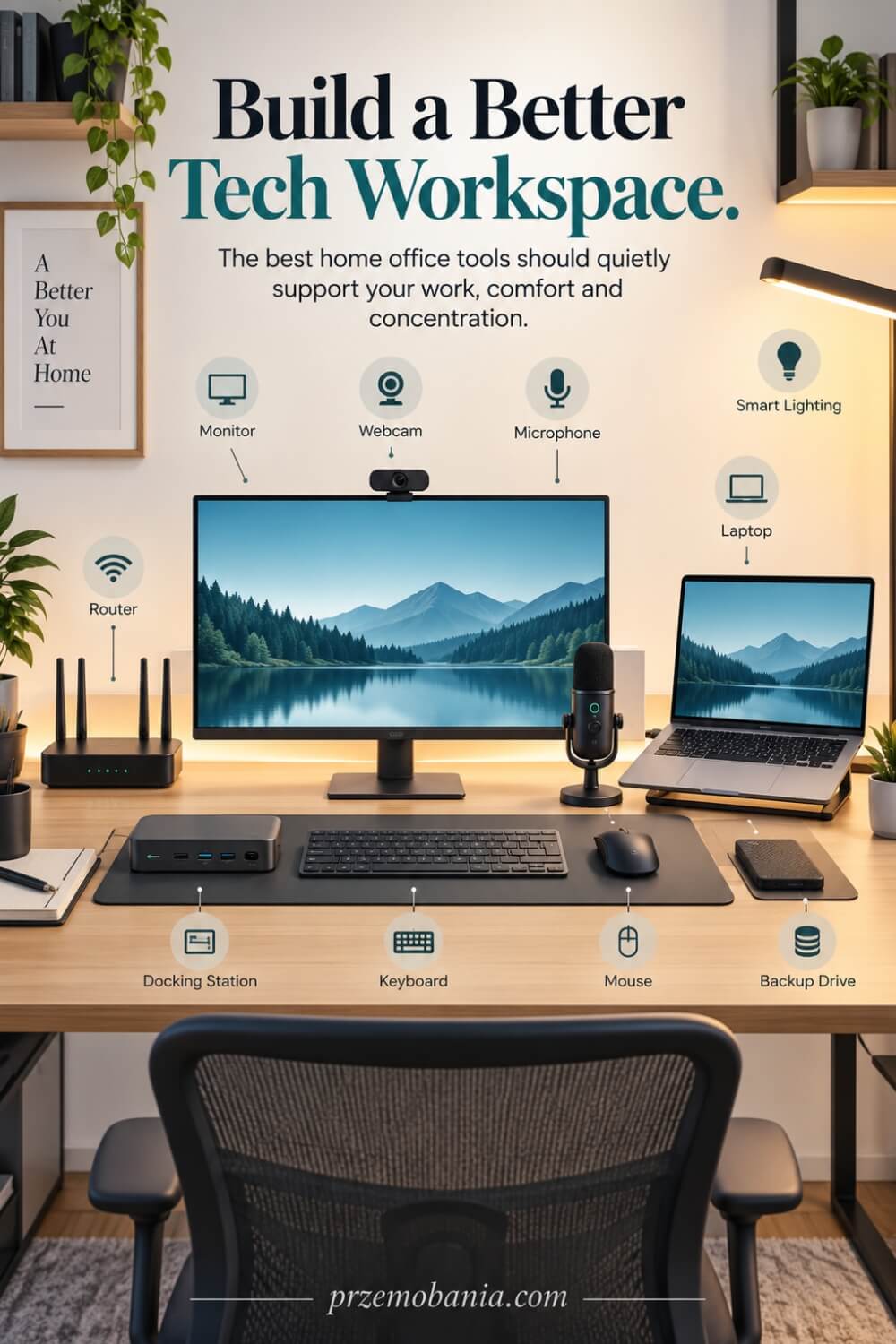
For most people, the essentials are a reliable computer, stable internet connection, suitable monitor, comfortable keyboard and mouse, dependable power and secure file storage or backup. What you add beyond that should depend on the work you actually do. A writer, designer, accountant and video editor may all need very different equipment despite working from similar-looking rooms.
2. Is a desktop or laptop better for working from home?
A laptop gives you flexibility and can become a full workstation when connected to a monitor, keyboard, mouse and suitable dock. A desktop can offer more performance, easier upgrades and better value when portability does not matter. I would choose based on where you work, which software you use and whether you regularly need to take your computer away from the desk.
3. Do I really need two monitors in my home office?
Not necessarily. Two monitors can be useful when you constantly compare documents, research while writing, monitor data or work across several applications, but one well-sized display may be cleaner and more comfortable for focused work. I prefer adding a second screen only when the extra workspace solves a repeated problem rather than because a dual-monitor desk looks more professional.
4. How fast should home office internet be?
There is no single broadband speed that suits every household because your needs depend on video calls, cloud backups, large downloads, streaming and how many people share the connection. Stability and Wi-Fi quality are often just as important as headline speed. Before upgrading your package, check router position, signal strength and whether Ethernet would improve reliability at your desk.
5. How often should I replace my home office equipment?
I do not replace equipment according to a fixed calendar. If a computer, monitor or accessory remains secure, supported, reliable and capable of doing the job comfortably, there is little reason to replace it simply because a newer model exists. Upgrade when limitations begin costing you meaningful time, comfort or reliability, and recycle or reuse old electronics responsibly whenever possible.
6. Can smart technology genuinely improve a home office?
Yes, but only when it removes repetitive effort. Smart lighting, automated routines, programmable controls and connected power can make a workspace easier to manage, particularly when your needs change throughout the day. I would avoid adding smart devices merely for novelty, because every connected product can also introduce another application, account, update or potential distraction that you then have to maintain.
Home Office Technology References
- https://pmc.ncbi.nlm.nih.gov/articles/PMC12439588/
- https://www.ons.gov.uk/employmentandlabourmarket/peopleinwork/employmentandemployeetypes/articles/whohasaccesstohybridworkingreatbritain/2025-06-11
- https://www.asurion.com/amazon/complete-protect/guides/best-office-setup-for-productivity/
- https://www.hse.gov.uk/msd/dse/good-posture.htm
- https://techexperts.co.nz/how-to-set-up-home-office-technology/
- https://venture-lab.org/2026/home-office-tech-setup-features-2026/
- https://www.wired.com/story/how-to-fix-bad-webcam-lighting
- https://www.ncsc.gov.uk/collection/top-tips-for-staying-secure-online/install-the-latest-software-and-app-updates
- https://www.ncsc.gov.uk/cyberaware/home
- https://www.ofcom.org.uk/phones-and-broadband/service-quality/broadband-wifi-help
- https://pubmed.ncbi.nlm.nih.gov/41194331/
- https://www.gov.uk/government/publications/it-reuse-for-good-charter/it-reuse-for-good-charter-guidance
- https://www.energystar.gov/products/monitors
- https://energy-efficient-products.ec.europa.eu/product-list/smartphones-and-tablets_en
- https://learn.microsoft.com/en-gb/lifecycle/products/windows-11-home-and-pro
- https://www.gov.uk/guidance/collecting-used-and-waste-electrical-and-electronic-equipment
- https://support.microsoft.com/en-us/windows/experience/focus-stay-on-task-without-distractions-in-windows
- https://www.hse.gov.uk/PuBns/priced/l26.pdf
